
Firestick IPTV buffering is the single most infuriating roadblock standing between you and a flawless home cinema experience. You have invested in a solid television, paid for a reliable IPTV subscription, and settled into your favourite chair — only to watch a spinning loading circle eat up the best moments of live sport, a film premiere, or a must-see series finale. That experience is all too common, and it does not have to be permanent. This comprehensive, 2026-updated guide is written from the perspective of someone who has spent years diagnosing streaming setups for real households, and it will walk you through every meaningful fix — from the free and instant to the more involved — so you can achieve true IPTV without buffering starting today.
Table of Contents

Why Firestick IPTV Buffering Happens: Understanding the Enemy
You cannot fix a problem you do not understand, so before reaching for settings menus, it pays to know what is actually going wrong beneath the surface. Firestick IPTV buffering is almost never caused by a single factor. It is usually the result of two or three weaknesses compounding at the same moment — a slightly slow connection colliding with a warm device and a cluttered cache, for instance. The main culprits fall into four broad families.
Internet instability tops the list. A live HD stream demands a consistent 15 Mbps, and 4K content pushes that requirement toward 25 Mbps or higher. The keyword here is consistent. A connection that averages 50 Mbps but spikes and drops unpredictably will cause far more buffering than a rock-steady 20 Mbps line. Jitter — the variation in packet arrival times — is often the invisible villain that speed-test results conceal entirely.
ISP throttling comes next. Many internet service providers quietly reduce the bandwidth available to unverified video streams. They can identify the traffic pattern of an IPTV provider and deliberately slow it down while leaving recognised platforms like Netflix or YouTube untouched. Users often blame their IPTV subscription when the real bottleneck is happening at the ISP level, completely outside the service’s control.
Hardware constraints are a third category. The Amazon Firestick is a remarkable piece of hardware for its size and price, but it is not a powerhouse. It ships with limited RAM and, once a handful of apps are installed, storage can drop to dangerously low levels. When the device is juggling too many background processes, it simply cannot devote enough resources to smooth video decoding, and Firestick IPTV buffering is the result.
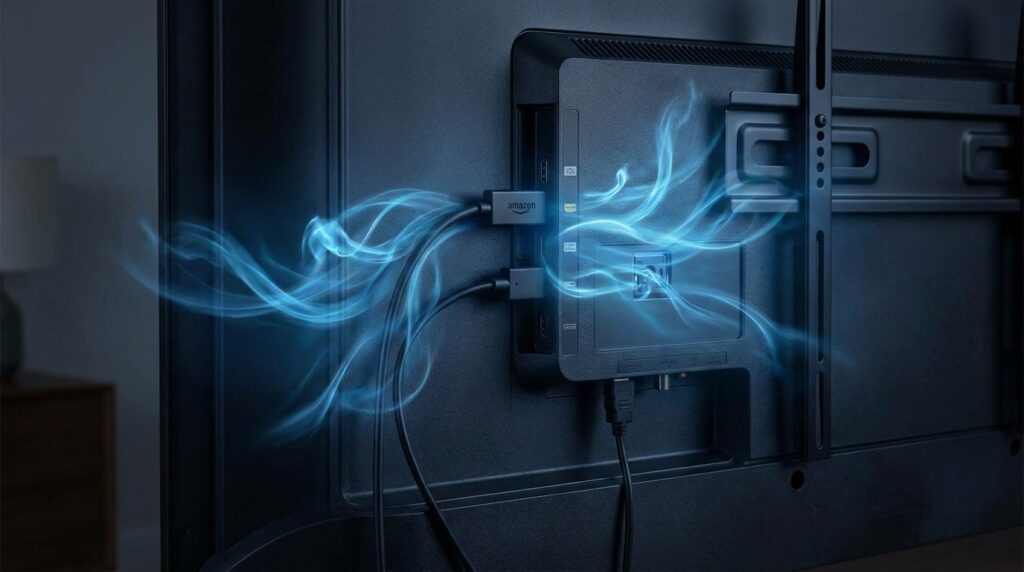
Overheating rounds out the group. The Firestick is frequently plugged directly into the back of a television, wedged in a tight HDMI port with no airflow. Screens generate considerable heat, and once the Firestick’s processor exceeds a safe operating temperature, it automatically throttles its own speed to avoid damage — causing freezes and stutters that feel exactly like a network problem.
Understanding which category (or combination of categories) is causing your specific issue allows you to apply the right fix rather than guessing through a long checklist.
Step One: Audit and Strengthen Your Network
Every setup IPTV on Firestick guide worth reading places network optimisation at the top of the priority list, and for good reason. No amount of app tweaking or device maintenance will compensate for a fundamentally unstable connection.
Switch to a Wired Connection
The single most impactful change most households can make is abandoning Wi-Fi for a physical Ethernet connection. Wi-Fi signals are shared, contested resources. Neighbouring networks, microwave ovens, baby monitors, and even the construction materials in your walls can all degrade signal quality. A wired connection cuts through all of that completely.
The Firestick does not have a built-in Ethernet port, but Amazon and third-party manufacturers sell inexpensive USB-to-Ethernet adapters designed specifically for the device. Connect the adapter to the Firestick’s USB port, run a cable to your router, and the device will automatically detect and prioritise the wired connection. If you are serious about getting IPTV without buffering, this single step may solve the problem entirely.
Choose the Right Wi-Fi Band
If running a cable is genuinely impossible in your living situation, at minimum ensure you are connecting to the 5 GHz band rather than 2.4 GHz. The 2.4 GHz band has a longer range but is extremely congested — it is shared with dozens of other devices and networks. The 5 GHz band offers significantly faster speeds and far less interference, making it a far better choice for the high-bitrate streams your IPTV subscription delivers.
On most modern routers, the two bands appear as separate networks in your Wi-Fi settings. Look for labels such as “MyNetwork_5G” or similar. Connect the Firestick to the 5 GHz variant.
Update Your DNS Servers
This fix surprises people because it sounds technical but takes under two minutes to implement and can dramatically improve stream stability. Your Domain Name System (DNS) server is what translates website and stream addresses into the actual locations the internet needs to reach them. ISP-provided DNS servers are often slow and, in some regions, actively interfere with traffic from an IPTV provider.
Switching to a faster, more neutral DNS can solve buffering for the majority of affected users. In 2026, the most recommended options are:
- Cloudflare: Primary 1.1.1.1 / Secondary 1.0.0.1 — widely regarded as the fastest globally
- Google: Primary 8.8.8.8 / Secondary 8.8.4.4 — highly reliable with excellent uptime
- Quad9: Primary 9.9.9.9 — prioritises privacy alongside speed
To apply these on your Firestick, go to Settings > Network > select your Wi-Fi network > Advanced > manually enter the DNS values. Restart the device afterwards and test your stream.
Position Your Router Intelligently
If you use Wi-Fi, the physical relationship between your router and your Firestick matters enormously. A router tucked inside a cupboard, behind a television, or in a different room will consistently underperform. Ideally, the router should be in the same room as the Firestick, positioned at a similar height, with no solid obstructions between them. If the router cannot be moved, a Wi-Fi extender or mesh network node placed closer to the television can bridge the gap effectively.

Step Two: Defeat ISP Throttling with a VPN
ISP throttling is responsible for a surprising proportion of Firestick IPTV buffering complaints. The mechanism is straightforward: your ISP monitors the type of data flowing through your connection, identifies video streams originating from an unverified IPTV provider, and applies a bandwidth limit to that specific traffic type. Because the throttling is selective, other apps continue working perfectly, which leads users to incorrectly conclude their IPTV subscription is at fault.
A Virtual Private Network (VPN) encrypts all traffic leaving your device and routes it through a server in a location of your choosing. From your ISP’s perspective, the data is indistinguishable encrypted noise — they cannot identify it as IPTV traffic and therefore cannot throttle it. This makes a VPN one of the most effective tools in any setup IPTV on Firestick toolkit.
To confirm whether throttling is your issue, follow this simple test: run your IPTV subscription with the VPN off and note the buffering level. Then activate the VPN and test again. If the stream becomes noticeably smoother, ISP throttling is confirmed.
When selecting a VPN for your setup IPTV on Firestick workflow, prioritise services with dedicated Fire TV apps, fast server networks, and a strict no-logs policy. Server location matters as well — connecting to a server geographically close to you will minimise the latency penalty that all VPNs introduce. Many users find that connecting to a server in the same country or a neighbouring one provides the best balance between security and speed.
Step Three: Liberate Your Device’s Resources
A cluttered, overloaded Firestick is a buffering machine. Maintaining a lean, well-managed device is essential for any setup IPTV on Firestick that you intend to rely on day after day.
The 1GB Storage Floor
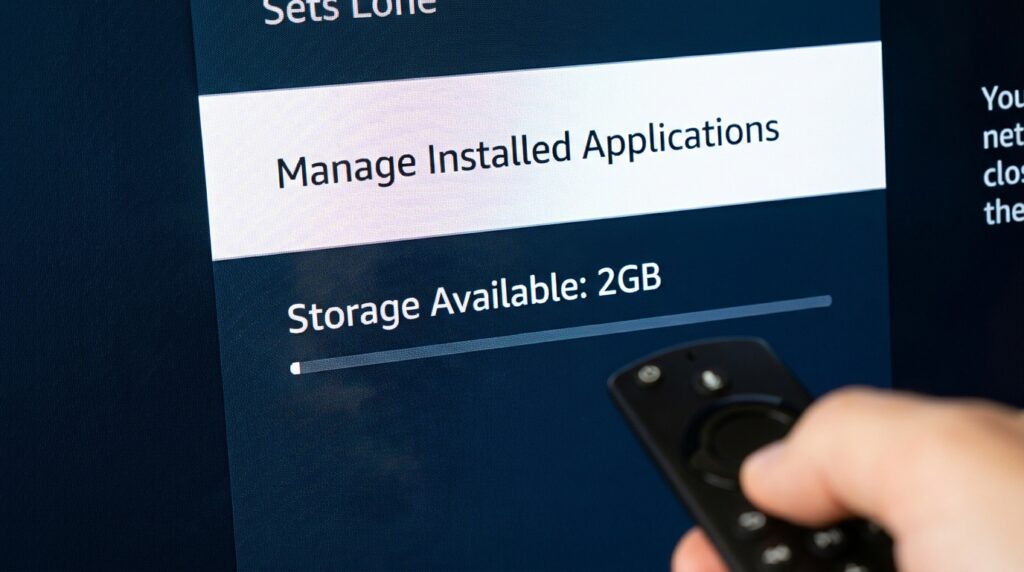
Firestick models typically ship with between 8GB and 16GB of internal storage, but the operating system and pre-installed Amazon apps consume a significant portion before you install a single third-party application. When available storage drops toward 500MB or below, the device begins throttling its own operations to manage the shortage — including video processing. The practical rule is to maintain at least 1GB of free space at all times.
Navigate to Settings > Applications > Manage Installed Applications and conduct an honest audit. Remove any app you have not opened in the past month. Then clear the cache for every remaining app, because temporary data accumulates rapidly and consumes space without any ongoing benefit to you.
Shut Down Background Processes
Every app that you have ever opened on your Firestick may still be quietly running in the background, consuming RAM that your best iptv player needs for smooth decoding. To address this, unlock the Developer Options menu by navigating to Settings > My Fire TV > About, then clicking on your device name seven times rapidly. Once Developer Options appears in the menu, enter it and look for the “Background process limit” setting. Setting this to “No background processes” forces the device to dedicate its full RAM to whatever is currently on screen.
Additionally, turn off data collection features. Go to Settings > Preferences > Privacy Settings and disable both “Device Usage Data” and “Collect App Usage Data.” These background data-gathering processes consume processor cycles and network bandwidth that should be reserved for your stream.
Regular Restart Cycles
RAM fragmentation is a real issue on the Firestick. Over days of continuous use, small fragments of memory become occupied by orphaned processes and never properly released. A full device restart — not just putting it to sleep — clears this fragmentation entirely. Making it a habit to restart your Firestick every two or three days takes about ninety seconds and pays significant dividends in stream stability, especially during extended viewing sessions with your IPTV subscription.
Step Four: Choose and Configure the Best IPTV Player
The application you use to access your IPTV subscription has a profound effect on your streaming experience. Different players handle buffering, decoding, and error recovery in fundamentally different ways. Choosing the best iptv player for your situation and then configuring it correctly can be the difference between a frustrating evening and a seamless one.
TiviMate: The Premium Standard
Among serious IPTV users, TiviMate has earned its reputation as the best iptv player available for the Firestick platform. Its interface is clean and intuitive, it handles Electronic Programme Guide (EPG) data elegantly, and — most importantly for our purposes — it includes sophisticated buffer management options that other players simply do not offer. The premium version, available via in-app purchase, unlocks additional customisation options including multiple playlist support and catch-up functionality.
IPTV Smarters Pro: Accessible and Capable
For users who prefer a straightforward approach to setup IPTV on Firestick, IPTV Smarters Pro offers an excellent balance of usability and features. Its interface resembles a traditional TV guide, which many users find more intuitive than TiviMate’s dashboard-style layout. It also supports multiple connection methods, including M3U playlists and Xtream Codes API, making it compatible with virtually any IPTV provider.
VLC and Other Alternatives
VLC Media Player remains a respected choice for technically confident users who want granular control over playback parameters. Its open-source nature means it supports an exceptionally wide range of stream formats and codecs, and its buffer settings can be adjusted with precision that closed-source players do not permit. However, its interface is less polished for a television environment, and navigating it with a remote control requires some patience.
Other worthy alternatives in 2026 include Kodi (for users comfortable with its more complex setup process) and Perfect Player (a lightweight option that performs well on older or lower-specification hardware).
Critical Player Settings to Configure
Regardless of which best iptv player you choose, three settings categories should always be reviewed before concluding your setup.
Hardware decoding should be enabled. This instructs the player to use the Firestick’s dedicated video decoding chip rather than software-based decoding, which is significantly more efficient. Look for settings labelled “Hardware” or “HW+” decoder and select them. This alone can eliminate a substantial category of Firestick IPTV buffering related to insufficient processing power.
Buffer size adjustment is counterintuitive but important. A larger buffer allows the player to download more of the stream in advance, which smooths over temporary network hiccups. In TiviMate, buffer sizes between 3,000ms and 10,000ms work well for most connections. In VLC, setting the network caching value to 1,000ms or higher achieves a similar effect. Conversely, if your connection is strong and stable, a smaller buffer can actually reduce the perceived delay between the live event and your screen.
Clearing the player cache should become part of your regular maintenance routine alongside clearing the system-level cache. Most players, including TiviMate and IPTV Smarters, include a cache-clearing option within their own settings menus. Use it weekly.
Step Five: Solve the Overheating Problem
Physical temperature is a factor that many Firestick users never think to address, yet it accounts for a significant share of persistent Firestick IPTV buffering cases — particularly in warmer climates or during long viewing sessions. The Firestick’s processor is designed to reduce its own clock speed when temperatures climb beyond safe thresholds. This thermal throttling is the device protecting itself, but from a user’s perspective it feels indistinguishable from a network or software problem.
Use the Included HDMI Extender
Every Firestick ships with a short HDMI extender cable, and a surprising number of users never take it out of the box. This cable is not decorative. Its purpose is to move the Firestick a few centimetres away from the rear of the television, creating airspace around the device and allowing the heat it generates to dissipate rather than accumulating in a confined gap. If you are currently plugging the Firestick directly into the television’s HDMI port, switching to the extender is a free, instant fix.
Power Source Discipline
Always power your Firestick from the included wall adapter, not from your television’s USB port. Television USB ports are designed to power peripherals like keyboards and hard drives, not streaming computers running continuous video processing workloads. They frequently deliver inconsistent voltage, which causes both performance issues and premature wear on the device’s internal components. The wall adapter ensures clean, stable power, which directly contributes to thermal stability and consistent performance from your best iptv player.
Positioning for Airflow
If your television has side-facing HDMI ports as well as rear-facing ones, try moving the Firestick to a side port. The additional clearance can make a meaningful difference to airflow. Some enthusiastic users go further, attaching a small USB-powered fan to draw heat away from the device — an approach that sounds dramatic but genuinely works in cases of severe thermal throttling.
Step Six: Evaluate Your IPTV Provider Honestly
After exhausting every local optimisation, it is worth asking a direct question: is the Best IPTV Service you have subscribed to actually performing at an acceptable level on their end?
An IPTV provider with underpowered servers, insufficient bandwidth headroom, or poor content delivery network (CDN) infrastructure will cause Firestick IPTV buffering that no local fix can resolve. This is especially visible during high-traffic periods — major football matches, championship events, or popular film premieres — when thousands of subscribers are drawing from the same server pool simultaneously.
What Separates a Good Provider from a Poor One
The Best IPTV Service providers invest in redundant server infrastructure, multiple CDN nodes spread across geographic regions, and robust monitoring systems that detect and reroute traffic during outages. They offer consistent uptime records, transparent communication during technical issues, and — critically — performance that holds during peak viewing times, not just at 2am on a Tuesday.
Be wary of any IPTV subscription priced significantly below the market average. The economics of running quality streaming infrastructure are real. Providers charging a fraction of the competition are almost certainly cutting costs somewhere, and server quality is the most common area where those cuts show up in your viewing experience. What separates a truly Best IPTV Service provider from the rest is their commitment to infrastructure that holds up under pressure.
Test Before Committing Fully
Any legitimate IPTV provider will offer a trial period or a short-term subscription option before asking you to commit to a longer plan. Use these trial periods actively, not passively. Test the service during the specific content types you care about most — live sport, 4K films, news channels — and test it at the times of day when demand is highest. A service that works smoothly at noon may falter badly at 8pm when millions of households are tuned in simultaneously.
Consider a Backup Subscription
Many experienced IPTV users maintain subscriptions with two different providers simultaneously. The cost is modest when you factor in the value of uninterrupted viewing, and having a reliable IPTV subscription backup means that when your primary service has a technical issue — which all services experience occasionally — you can switch within seconds rather than missing the event entirely. This approach is particularly valuable for households where sport or live events are a significant part of the viewing diet.
Step Seven: Advanced Fixes and When to Consider a Hardware Upgrade
If you have worked through every step above and Firestick IPTV buffering persists, a small number of more drastic options remain.
Factory Reset
A factory reset wipes the device back to its out-of-box state, eliminating every app, cached file, corrupted data fragment, and misconfigured setting in a single operation. It is a significant step because it requires you to repeat your entire setup IPTV on Firestick process from scratch, reinstalling and reconfiguring your best iptv player and any other applications you use. However, it is remarkably effective at resolving buffering problems caused by software issues that accumulated gradually over months of use and are difficult to trace through normal troubleshooting.
Before proceeding, make a note of all your app settings, login credentials, and your IPTV provider connection details. Navigate to Settings > My Fire TV > Reset to Factory Defaults and confirm. The process takes around ten minutes.
Hardware Upgrade
Some buffering problems are ultimately a hardware limitation. The entry-level Firestick Lite, in particular, was designed for HD content and can struggle with the higher bitrate streams that a Best IPTV Service delivers in 4K. If your device is two or more generations old, upgrading to a Fire TV Stick 4K Max delivers a substantially more powerful processor, improved Wi-Fi 6E connectivity, and significantly more RAM — all of which translate directly into smoother streaming.
For households that have entirely outgrown the stick form factor, dedicated streaming boxes such as the Nvidia Shield TV or the Formuler Z11 offer performance levels that the Firestick cannot match. These devices are purpose-built for demanding video workloads, run Android TV natively (giving access to the full best iptv player ecosystem), and maintain consistent performance even during extended 4K viewing sessions. The investment is higher, but so is the ceiling of what is achievable — and for anyone seeking the absolute Best IPTV Service experience, premium hardware is a worthwhile companion to a premium subscription. The investment is higher, but so is the reward in terms of IPTV without buffering.
Building a Maintenance Routine That Prevents Buffering
The most reliable way to enjoy IPTV without buffering long-term is to treat your Firestick as a piece of equipment that requires periodic maintenance — because it does. The following routine, applied consistently, will prevent the majority of buffering problems before they develop.
Weekly: Clear the cache for your best iptv player and any other frequently used apps. Check available storage and uninstall anything you no longer need.
Every two to three days: Restart the device fully (not sleep mode) to clear RAM fragmentation and refresh background processes.
Monthly: Review your IPTV subscription service’s performance, check whether your IPTV provider has released any server or app updates, and verify that your DNS settings remain configured correctly after any router firmware updates. It is also a good moment to benchmark whether your chosen Best IPTV Service continues to deliver the channel quality and uptime you are paying for — providers do change over time, and the market for setup IPTV on Firestick compatible services evolves rapidly.
Seasonally: Inspect the physical setup of your device. Check that the HDMI extender is still in place and providing adequate clearance. Verify that the wall adapter is properly connected and showing no signs of wear. Dust the area around the device if it has accumulated.
This level of attention takes perhaps ten minutes per week and pays for itself many times over in uninterrupted viewing.
Conclusion: You Deserve a Buffer-Free Experience
Firestick IPTV buffering is not an inherent limitation of the technology — it is a diagnostic challenge with concrete, achievable solutions. By working through the steps in this guide, you have addressed every meaningful category: your network’s stability, your ISP’s throttling behaviour, your device’s resource management, your player’s configuration, your hardware’s thermal health, and the quality of your underlying IPTV subscription.
The Best IPTV Service experience is not just about the service itself — it is the sum of every component in the chain from the IPTV provider’s servers to your television screen. When each link in that chain is properly managed, the result is exactly what you signed up for: smooth, high-definition television, on demand, without interruption. Achieving genuine IPTV without buffering is a realistic goal for any household — it simply requires treating each layer of the system with equal care.
Take the time to setup IPTV on Firestick correctly once, maintain it properly, and choose your IPTV subscription from a provider with the infrastructure to deliver what they promise. The Best IPTV Service providers are out there — and when you pair them with a well-optimised device, a secure VPN, and the best iptv player configured to your connection’s strengths, you will discover what IPTV without buffering truly feels like. Do that, and Firestick IPTV buffering becomes a problem of the past rather than a feature of your evenings.