The way we consume television has changed beyond recognition. A decade ago, the idea of watching live sports, international news, and on-demand movies from a single lightweight app would have seemed like science fiction to most households. Today, it’s Tuesday night. And millions of people are doing exactly that — through an IPTV player.
But here’s the reality that most beginner guides won’t tell you upfront: the player you choose, the network you run it on, and the security habits you build around it will determine whether your streaming experience is genuinely world-class or a daily frustration of buffering wheels and dropped connections. This guide exists to make sure you end up in the first camp.
Whether you’re a first-time cord-cutter or someone who’s been around the block with a few different apps and wants to finally get the setup right, this is the master roadmap you’ve been looking for — covering technical integration, platform-by-platform player rankings, performance optimization, security protocols, and troubleshooting fixes that actually work.
Table of Contents
Phase 1: Foundation and Technical Integration
Before you can watch a single frame of content, your IPTV player needs to be connected to a source. This is where a lot of new users make their first mistake — choosing the wrong connection method and then wondering why their EPG doesn’t load or why their channel list is three weeks out of date. There are two primary methods, and understanding the difference between them is foundational.
The Gold Standard: Xtream Codes API
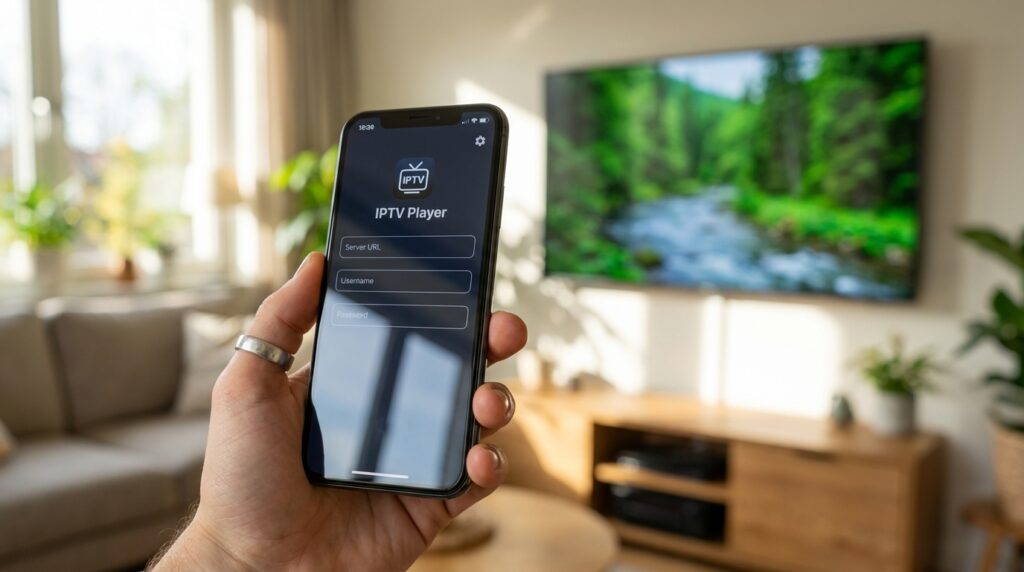
The Xtream Codes API — commonly called XC API — is the connection method that separates a properly configured setup from a patchwork one. Rather than relying on static files, the XC API functions as a live, secure bridge between your provider’s server and your IPTV player. When you log in using your Server URL, Username, and Password, the app automatically pulls your entire channel list, your VOD library, your series catalog, and your EPG data in one synchronized action.
The real advantage here is automation. Every time you open your IPTV player, it syncs with the server. New channels added by your provider appear without you lifting a finger. Updated schedules, refreshed stream links, newly added movies — all of it comes through automatically. For anyone serious about a clean, low-maintenance setup, the XC API is the only way to go.
If you’re still in the process of finding a reliable provider to generate these credentials, our iptv subscription guide covers what to look for in a quality service, including channel count, VOD depth, and uptime guarantees.
The Legacy Method: M3U Playlists
M3U playlists are the older, more universal approach. These are text-based files — or long URLs — that contain a list of stream addresses your IPTV player reads and translates into a channel lineup. Virtually every IPTV player in existence supports M3U, including desktop stalwarts like VLC Media Player.
The tradeoff is maintenance. M3U playlists are static snapshots. When your provider updates their server, your playlist doesn’t know about it until you manually refresh or re-import the file. EPG data is usually a separate step entirely, requiring its own URL configuration on top of the playlist setup. For users with simpler needs or those testing a new provider before committing, M3U is perfectly functional. But for daily use, XC API will serve you significantly better.
Mastering the EPG (Electronic Program Guide)
An IPTV player without a working EPG is like a cinema without a listings board — technically functional, but missing something that makes the whole experience dramatically easier to navigate. The EPG tells you what’s on right now, what’s coming up in the next few hours, and what you may have missed earlier in the day.
Here’s the full 10-step process for adding an EPG source to most IPTV players:
- Open the Settings menu inside your app.
- Navigate to the EPG or Guide section.
- Select “Add Source.”
- Enter the XMLTV URL — usually ending in
.xmlor.gz— provided by your service. - Save your settings.
- Return to the EPG main menu.
- Set your new source as the Default.
- Confirm the changes to trigger the initial data download.
- Verify the guide appears correctly alongside your channel list.
- Adjust the Time Offset in settings if program times don’t align with your local time zone.
That last step is one people frequently overlook. If your EPG shows a football match starting at 8 PM but it actually kicks off at 6 PM local time, a simple time offset correction resolves it instantly.
Phase 2: Platform-Specific Player Rankings
Choosing the best IPTV player isn’t a one-size-fits-all decision. The right app depends heavily on your hardware, your operating system, and how you actually want to interact with your content. Here’s a platform-by-platform breakdown of the top contenders.
Top Players for Android TV and Amazon Firestick
The Android TV and Firestick ecosystem is where the most intense competition in the IPTV player market plays out, and the quality of the options reflects that.
TiviMate currently holds the crown as the number one IPTV player in global rankings. Its interface is genuinely cable-quality — polished, fast, and loaded with advanced features like Multiview (watching multiple channels simultaneously in split-screen) and deeply customizable EPG layouts. If you want the best of the best and you’re on Android TV or Firestick, TiviMate is where your search ends.
IPTV Smarters Pro is the versatile all-rounder of the group. It handles both M3U and XC API connections cleanly, offers multi-screen capabilities, and has one of the simplest login interfaces available. It’s particularly well-suited for users who are new to IPTV and want a reliable, well-documented experience from day one. We’ve put together a dedicated IPTV Smarters Pro guide that walks through every feature in detail — worth bookmarking alongside this article.
XCIPTV deserves its reputation as the best free IPTV player currently available. Its clean layout integrates smoothly with external players like MX Player, which is useful for reducing buffering on streams that the internal decoder struggles with.
Sparkle TV is a rising name to watch. It brings a modern UI and one feature that sets it apart from most competitors: built-in DVR scheduling, which lets you record live events directly through the app. For sports fans who can’t always watch live, this is genuinely valuable functionality.
NexTV takes a different approach, focusing heavily on the VOD experience with a Netflix-style layout that makes browsing movies and series far more intuitive than most player interfaces manage.
If you’re setting up on a Firestick specifically, our setup IPTV on Firestick guide covers the full sideloading process, APK installation, and the settings adjustments that make a real difference on Amazon’s hardware. It’s the natural next read after this one.
Best IPTV Players for Windows 10 and 11
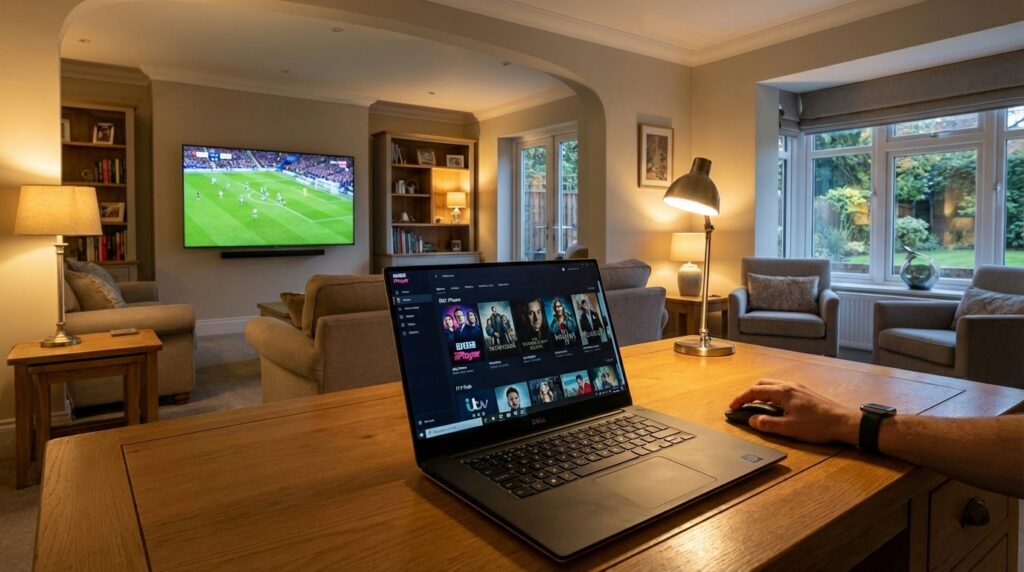
Streaming on a desktop or laptop requires a different kind of IPTV player — one built around keyboard navigation, larger screen real estate, and the multitasking habits of PC users. Here are the top 11 options for Windows:
- Smarters PRO — Top-rated overall for Windows, with fluid playback and a clean interface.
- Win IPTV Player Pro — Highly stable, supports M3U files, and available directly from the Microsoft Store.
- Zen IPTV Player — Windows-native design with excellent EPG integration.
- Warm IPTV Pro — Excels at managing large VOD libraries and OTT streaming.
- IPTV Smarters Expert — Professional-grade, supporting all common stream formats.
- ALL IPTV Player — Lightweight and straightforward for users who want simplicity above all else.
- IPTV Player – TV Channels — Focused on live TV reliability and easy configuration.
- IPTV Smarters Expert PREMIUM — Adds multi-screen sync across devices.
- IPTV Player – Live & TV Shows — Modern and streamlined via the Microsoft Store.
- IPTV Player – Online Stream — Solid performance specifically on older Windows 10 builds.
- Smarters IPTV — Feature-rich subscription management for power users.
Top IPTV Players for iOS (iPhone and iPad)
Mobile IPTV has its own set of demands — touch-optimized interfaces, battery efficiency, and background audio handling all matter more here than on a TV or desktop setup.
IPTV Smarters Pro leads on iOS just as it does on Android, consistently cited by users as the most stable and reliable option across iPhone and iPad hardware.
GSE Smart IPTV is the customizer’s choice, offering Chromecast support, multiple subtitle language options, and a level of configuration depth that appeals to more technically minded users.
Flex IPTV keeps things simple — easy M3U uploads, dynamic language switching, and a no-fuss interface that gets you to your content quickly.
IPTV Player (Play m3u playlist) is the lightweight option for users who just want to paste a link and start watching without configuring anything else.
XCIPTV Player brings a premium feel to iOS with built-in VPN integration options — a useful feature we’ll discuss in more detail in the security section.
Phase 3: The Zero-Buffering Performance Blueprint
Here’s an uncomfortable truth: even the best IPTV player on the market will give you a frustrating experience if your network isn’t set up properly. Buffering is almost never the app’s fault. It’s almost always a network issue, an ISP behavior, or a hardware limitation — and all three are fixable.
Network Benchmarks for Smooth Streaming
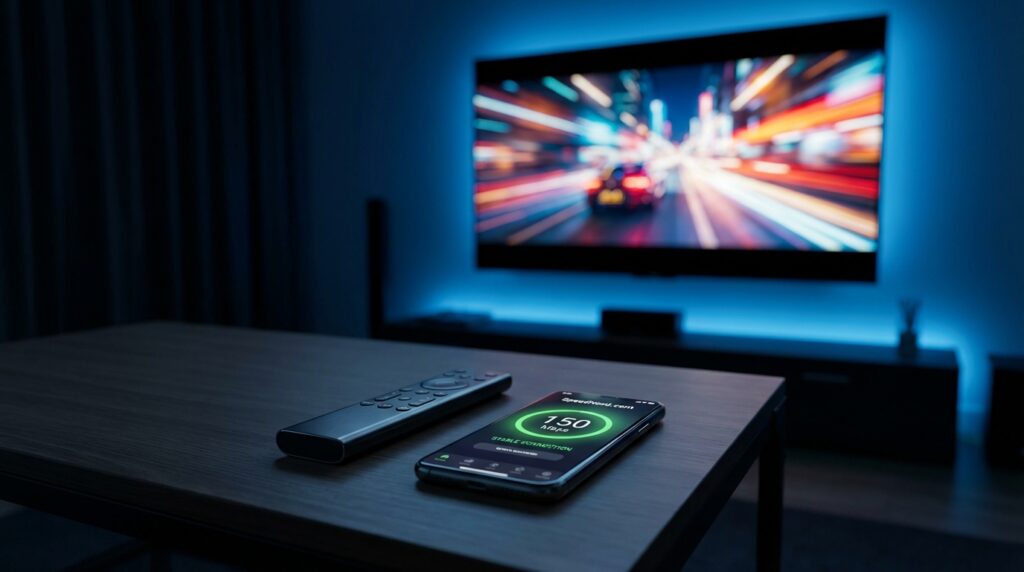
Start with your connection speed. For standard live streaming, you need a stable minimum of 12–15 Mbps download speed. Note the word stable — a connection that averages 25 Mbps but drops to 8 Mbps every few minutes is worse for streaming than a consistent 15 Mbps line.
For Firestick users specifically, a wired Ethernet adapter is one of the best investments you can make. Wi-Fi signals fluctuate constantly — walls, neighboring networks, microwave ovens, and Bluetooth devices all cause interference. A hardwired connection eliminates all of that.
If a wired connection isn’t practical, a quality Wi-Fi extender positioned between your router and your streaming device can boost effective bandwidth by up to 40%. It’s not as good as ethernet, but it’s a meaningful improvement over a weak wireless signal.
Software-Level Optimization
Beyond the network, there are app-level habits that directly affect performance:
Clear your cache regularly. Over time, temporary files accumulate inside your IPTV player and slow down load times, channel switching, and EPG rendering. Clearing the cache from your device’s app settings takes thirty seconds and often produces an immediate improvement.
Experiment with external video players. If the internal decoder in your chosen app is struggling with high-bitrate streams, most IPTV players allow you to redirect playback to an external engine like VLC or MX Player. These use hardware decoding more efficiently and often eliminate lag that the built-in player can’t handle.
Consider a hardware upgrade if your device is aging. Older streaming sticks and budget Android boxes with limited RAM increasingly struggle with 2025–2026 era high-bitrate HD and 4K streams. Upgrading to something like the Formuler Z11 Pro Max or a more powerful Android TV box with 4GB of RAM or more will dramatically improve your IPTV player experience — often more than any software tweak.
Phase 4: Security and Privacy Protocol
This is the section that too many IPTV guides skip or bury at the bottom. Your security posture matters, and it matters more than most users realize.
Why a VPN Is Non-Negotiable
When you stream through an IPTV player, your Internet Service Provider can see your traffic. In many regions, ISPs actively monitor streaming behavior and throttle connections they identify as IPTV traffic — artificially slowing your bandwidth to make the experience frustrating. A quality VPN encrypts your connection end-to-end, making your traffic invisible to your ISP and bypassing these deliberate speed restrictions.
Beyond throttling, a VPN protects your digital fingerprint — your IP address, browsing behavior, and streaming history. This is basic privacy hygiene for any regular streaming user.
There’s also a practical benefit for sports fans: geo-blocked content. Certain live events are restricted by region at the broadcast level. A VPN lets your IPTV player connect through a server in a different country, unlocking content that would otherwise be unavailable from your location. If you’re based in the UK and want to know more about accessing the full range of live football coverage, our guide on how to watch Premier League on IPTV UK covers this in depth — including which VPN configurations work best alongside UK-focused IPTV services. And if you’re still evaluating providers, the Best IPTV UK roundup is the most comprehensive comparison we’ve published, covering channel depth, reliability ratings, and pricing across the top services currently operating.
Data Hygiene and Account Safety
A few ground rules that every IPTV player user should operate by:
Never download apps from unverified sources. Modded APKs circulating on random forums and file-sharing sites frequently contain malware or spyware. Always download your IPTV player from the official Google Play Store, Amazon Appstore, Apple App Store, or the developer’s verified website.
Use strong, unique passwords for both your iptv subscription account and your player app settings. Password reuse is the single most common cause of account compromise.
Don’t share your M3U link or XC API credentials. Sharing your playlist link — even with someone you trust — creates risk. Providers monitor usage patterns and will often ban accounts showing simultaneous connections from multiple IP addresses. In some cases, a shared link gets circulated further than you intended and leads to a permanent account termination.
Phase 5: Expert Troubleshooting Cheat Sheet
When something goes wrong with your IPTV player setup, most problems fall into a handful of predictable categories with straightforward fixes.
“Invalid URL or Credentials” error — This almost always comes down to a typo. Go character by character through your server URL, username, and password. Pay particular attention to lowercase versus uppercase letters and whether there are any trailing spaces after pasting. If the credentials look correct, contact your provider to confirm your subscription is still active.
“No Program Found” in EPG — This typically means the provider’s XMLTV data is incomplete for a specific channel. The channel exists, but no schedule information has been attached to it. Try manually refreshing the EPG data in your player’s settings. If specific channels remain without guide data, this is a provider-side issue rather than an app problem.
“Failed to Load EPG” — Check your internet connection first, as EPG data files can be large and require a stable connection to download. If connectivity isn’t the issue, delete the EPG source from your settings entirely, then re-add it using the correct URL. A fresh import often resolves corrupted or stalled data.
Stream freezing on a fast connection — If your internet speed test looks healthy but streams keep freezing at irregular intervals, the bottleneck is almost certainly on the provider’s server rather than your local setup. Overloaded servers struggle during peak viewing hours, particularly around major live events. The cleanest solution is switching to a backup service or contacting your provider about a less congested server option.
Bringing It All Together
Building a genuinely great IPTV setup in 2025 and 2026 requires more than downloading an app and pasting in a link. It requires understanding which connection method gives you the best long-term experience, choosing a player that matches your hardware, optimizing your network for stability, protecting your privacy with a VPN, and knowing exactly what to do when something breaks.
The good news is that once all of those pieces are in place, the experience is remarkable. Live TV, VOD, sports, international content, on-demand series — all of it, through a single interface, on whatever screen you’re sitting in front of.
For your next steps: if you’re setting up on a Fire TV device, the setup IPTV on Firestick guide is the most logical place to go from here. Sports fans should read the how to watch Premier League on IPTV UK article before the next match weekend. And if you haven’t settled on a provider yet, start with our Best IPTV UK comparison and our iptv subscription guide — they’ll save you time and help you avoid the services that consistently underdeliver.
The streaming landscape in 2025 rewards users who take the time to set things up properly. This guide gives you everything you need to be one of them.