OTT Navigator has quietly become the go-to application for serious cord-cutters who refuse to settle for a laggy, ad-cluttered viewing experience. Whether you stumbled across it while hunting for the best iptv player on the market or a friend nudged you away from a glitchy competitor, you are in the right place. This guide walks through every layer of the app — from the first installation screen to the most obscure codec tweak — so you can squeeze every last drop of performance from your IPTV subscription throughout 2026.
Table of Contents
What Exactly Is OTT Navigator — and Why Does It Matter?
At its core, this application is a professional-grade video player built specifically around the logic of streamed and on-demand content delivered by third-party OTT services. The app ships completely empty. It holds no channels, no movies, no sports packages. Think of it as a high-performance engine sitting idle, waiting for you to drop in fuel from your chosen IPTV provider. That distinction matters enormously, both legally and practically.
Because OTT Navigator never bundles any content of its own, the app itself is legal to download and use. What you watch through it is an entirely separate question — one you should consider carefully before subscribing to any service. From a practical standpoint, separating the player from the content means the developers can focus exclusively on making the playback engine as powerful as possible. The result is a tool that handles playlists containing tens of thousands of entries without breaking a sweat, something that causes rival apps to stutter or crash entirely.
The feature set is genuinely impressive. Granular buffer controls, multi-source channel folding, cloud backup, integrated EPG management, external player support, and a deeply customisable interface all come packed into one lightweight package. For anyone juggling a large IPTV subscription with hundreds of categories and dozens of regional packages, OTT Navigator feels less like a media player and more like mission control.
Understanding Legality and Why a VPN Is Non-Negotiable
Before installing anything, spend a few minutes understanding the legal landscape. It will save you headaches later.
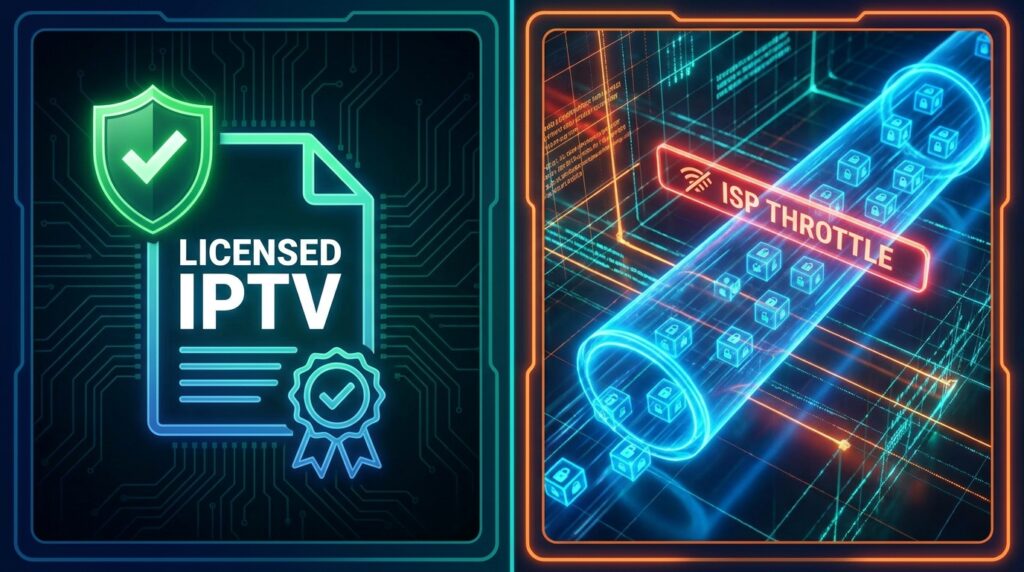
Verified versus unverified services is the clearest line to draw. If an IPTV provider appears in official storefronts like the Google Play Store or the Amazon App Store, it has gone through a vetting process and is almost certainly a properly licensed platform. Unverified services — the kind you sideload or access through a portal URL — frequently offer thousands of live channels at suspiciously low prices. Some are legitimate regional re-broadcasters; many are not. Do your homework before handing over payment details or streaming copyrighted events.
Even with a fully legal IPTV subscription, a VPN is no longer optional — it is table stakes. Internet service providers in the UK, the US, Australia, and most of Europe now routinely throttle UDP traffic during peak hours, which is exactly when you are trying to watch live sport. A VPN encrypts your data stream and routes it through a server the ISP cannot inspect, stopping that throttling dead. It also masks your IP address, giving you a meaningful layer of privacy regardless of what you are watching. OpenVPN-based services tend to offer the best balance of speed and security for high-bitrate IPTV streams, though WireGuard is closing the gap rapidly.
Installation on Every Major Platform
OTT Navigator runs on any Android-based operating system, which covers the overwhelming majority of streaming hardware sold today.
Android Phones, Tablets, and Certified TV Boxes
The path here is as simple as it gets. Open the Google Play Store, search “OTT Navigator IPTV,” and tap install. Grant the storage and network permissions the app requests on first launch, and you are ready to connect your IPTV subscription. Certified Android TV boxes from manufacturers like NVIDIA, Xiaomi, and Mecool will show the app in their Play Store versions as well.
Amazon Firestick and Fire TV
Amazon’s walled-garden approach means OTT Navigator does not appear in the Fire TV app store, so sideloading is required. Navigate to Settings, then My Fire TV, then Developer Options, and toggle “Apps from Unknown Sources” to on. Install the free Downloader app from the Amazon store, open it, and enter the code 774792 into the URL field. This fetches the standalone APK directly, bypassing the need to hunt for a download link manually. For a more thorough walkthrough — including screenshots for every step — check out the dedicated setup IPTV on Firestick installation guide.
Windows PC and Mac
There is no native desktop build. Windows 11 users can enable the Windows Subsystem for Android and install the APK directly through it. On older Windows versions or macOS, emulators like BlueStacks or NoxPlayer run the app reliably and offer a genuine advantage: a keyboard and mouse make managing sprawling playlists from multiple providers far less tedious than navigating on-screen menus with a remote.
Connecting Your IPTV Provider: Four Methods Explained
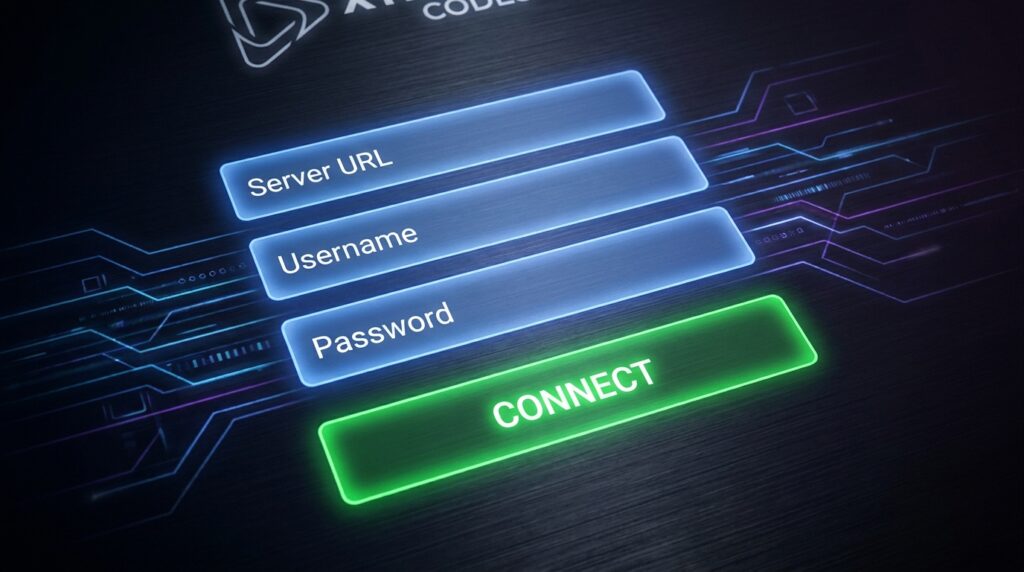
Once the app is running, the next step is feeding it content. The player supports four distinct connection protocols to cover virtually every type of IPTV provider currently on the market.
Xtream Codes API is the gold standard for modern services and the method you should default to wherever available. Your provider supplies a server URL, a username, and a password. Paste those three pieces of information into the corresponding fields, and the player fetches your full channel list, VOD library, and series archive automatically. This method also enables catch-up playback and real-time EPG data without any additional configuration.
M3U Playlist URL is the universal fallback. If your IPTV subscription came with an M3U link rather than Xtream credentials, simply paste that URL into the playlist manager. Channel list updates happen automatically each time the app refreshes the playlist, though you lose some of the richer metadata that Xtream Codes carries.
Stalker/MAC Portal covers older middleware-based services that predate the Xtream standard. Select “Generic Middleware Server” in the add-playlist menu, enter the portal URL provided by your supplier, and input the MAC address the service expects. Some providers tie each connection to a specific MAC, so you may need to request a new address if you are switching devices.
Local M3U Files work as a last resort when you have a playlist file stored directly on the device. Android’s file permission model makes this fiddly, but it functions adequately for offline testing or initial troubleshooting before your remote playlist is confirmed working.
The Full Anti-Buffering Playbook
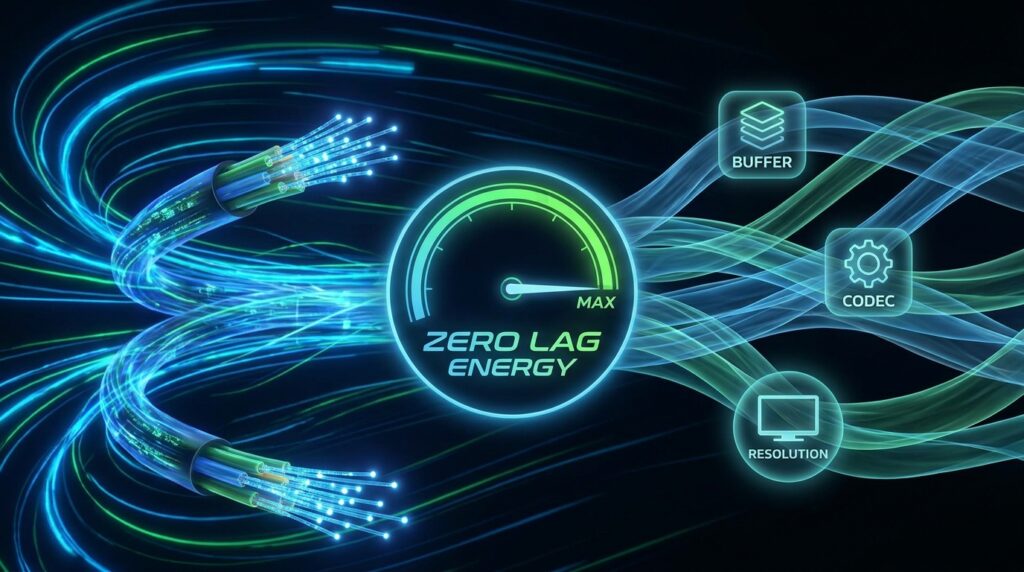
Buffering is the single biggest complaint among IPTV users, and solving it is where OTT Navigator truly distinguishes itself from simpler players. The app exposes settings that most consumer players hide entirely, giving you real leverage over playback quality. Here is a systematic approach to achieving IPTV without buffering on virtually any device.
Buffer Size Tuning is the first dial to adjust. For a fast, stable connection — 50 Mbps or better with consistent pings — setting the buffer to “minimal” reduces latency and makes channel switching feel snappier. If your network drops packets occasionally, which is common with busy home Wi-Fi or mobile data, pushing the buffer toward “maximum” gives the player a larger reservoir of pre-downloaded data to draw from during signal hiccups.
Hardware Codec Selection trips up a surprising number of users. Modern streams increasingly use HEVC (H.265) encoding to deliver 4K content at manageable bitrates, but hardware decoders on budget devices often implement the spec imperfectly. Switching to “compatibility mode” within the codec settings forces the app to use a safer decoding path that is slower but dramatically less prone to green-screen artifacts, sync issues, and sudden freezes.
The AmLogic Fix deserves particular attention because it catches so many users off guard. A large proportion of affordable Android TV boxes — especially those from brands like X96, H96, and Tanix — run AmLogic processors. The app includes a specific AmLogic optimisation toggle that, somewhat counter-intuitively, often causes more problems than it solves on these devices. If your box uses an S905, S912, or similar chip and you are seeing stuttering on HD channels, disable the AmLogic fix and test again. The improvement can be dramatic and immediate.
Resolution Scaling is the nuclear option for severely constrained connections. If your internet connection genuinely cannot sustain a 4K stream — which requires a sustained 25 Mbps or more — force the device output to 1080p in the display settings. The server will often serve a lower-bitrate version of the same stream, and your CPU stops wasting cycles on a decode workload your panel cannot render anyway. This single change often transforms an unwatchable stream into a smooth one.
External Player Integration solves edge cases where the built-in engine cannot handle a specific stream format. The player lets you pass any channel directly to VLC, MX Player, or another installed player with a single button press. This is particularly useful for streams that use unusual container formats or DRM schemes the built-in decoder does not support.
Applied thoughtfully, these adjustments can transform a frustrating evening into genuinely IPTV without buffering playback, even on budget hardware that other apps struggle to drive properly.
EPG Setup, Multi-Playlist Management, and Smart Channel Organisation
This is where OTT Navigator stops being merely functional and starts becoming genuinely impressive. The organisational tools available here are the primary reason power users choose it over simpler alternatives, and they represent some of the strongest arguments for it being the best iptv player for serious enthusiasts.
Electronic Program Guide Integration
Adding an EPG source is straightforward: drop the URL into the EPG manager, set your refresh interval — every 12 hours works well for most providers — and the app populates every channel row with programme information. Where OTT Navigator stands out is its timezone offset tool. If your provider’s EPG data is tagged to UTC but you are in a region that observes BST, PST, or IST, you can apply a virtual time-shift in half-hour increments so the guide aligns perfectly with what is on screen. Layering multiple EPG sources simultaneously is also supported, which is useful when your primary source covers live channels well but lacks VOD metadata.
Merging Multiple Subscriptions
If you hold more than one IPTV subscription — a common setup among enthusiasts who use one provider for sports and another for international content — the app can merge categories from both into a single unified list. Your “Sports” folder might draw from Provider A, while “International” pulls from Provider B, but from the viewer’s perspective it all looks like one seamless library. This is a feature you simply will not find in simpler players.
Duplicate Channel Folding and Automatic Failover
Perhaps the single most underappreciated feature in the entire app is channel folding. When multiple providers carry the same channel, the application can collapse those redundant entries into one listing. Behind the scenes the app knows about every available source; it simply presents them as one entry to the viewer. If the primary stream goes down — server maintenance, overload during a major event, a routing issue — the app silently switches to the backup source in the background. You get IPTV without buffering continuity even when one server falls over entirely.
During events like the FIFA World Cup, where demand spikes cause individual servers to buckle under simultaneous connections, this failover behaviour is invaluable. If you plan to rely on IPTV for major tournaments, also check out the dedicated iptv for Sports World Cup guide for provider-specific recommendations and stream quality tips.
Interface Customisation
The visual layer is fully configurable. Font sizes, logo display modes, colour accent schemes, grid versus list layouts, and poster art density are all adjustable. If you hand the remote to family members who find technology intimidating, you can simplify the interface down to a clean grid that looks similar to a traditional cable TV guide. If you want maximum information density and prefer seeing dozens of channels at once, you can configure that too.
Premium Features Worth Every Penny
OTT Navigator runs a freemium model that is unusually honest. The free version works — you can connect a playlist and watch content without paying — but it caps you at a limited number of playlists and displays periodic ads. The premium tier removes all of that and adds features that quickly become indispensable for anyone managing a serious IPTV subscription.
Cloud Backup is the headline premium perk. The app generates a short alphanumeric code representing a complete snapshot of your configuration: every playlist, every provider credential, every EPG source, all your favourites and custom categories, and all your playback settings. Store that code somewhere safe, and you can restore an identical setup on any new device in under a minute. For anyone who has spent an evening painstakingly rebuilding their IPTV subscription configuration after a factory reset, this feature alone justifies the upgrade cost.
Multi-Device Activation allows a standard premium purchase to cover up to five devices simultaneously, which is generous for a household with a mix of phones, tablets, and TV boxes all pulling from the same IPTV provider.
OttNav Companion solves the account management problem on devices without the Play Store, like the Firestick. Install the Companion app on an Android phone, log into your account there, and you can purchase premium slots and activate remote devices without ever needing to open a browser on the Firestick itself. It is a thoughtful piece of design that makes the whole ecosystem feel cohesive.
Recording and Catch-Up round out the package for users whose IPTV provider supports these features at the server level. Schedule a recording directly through the EPG, and the app saves the stream locally. Catch-up lets you scroll backwards through the EPG grid and watch any programme your provider has archived — typically the previous seven days. Both features require server-side support, so confirm availability with your provider before expecting them to work.
At roughly one dollar per month or a one-time twenty-dollar lifetime purchase, the premium tier represents exceptional value compared to every alternative in the market.
OTT Navigator vs. TiviMate vs. IPTV Smarters Pro: The 2026 Verdict
The three apps that dominate serious IPTV usage each carve out a distinct niche, and choosing between them comes down to what you actually value in a player.
TiviMate IPTV Player is the choice for households where the viewer just wants to press play without thinking about settings. Its grid interface is polished to a cable-TV shine, channel switching feels instant, and non-technical users adapt to it within minutes. TiviMate Premium has climbed toward forty dollars for a lifetime licence, which remains reasonable but is noticeably higher than it was two years ago. For large playlists containing 20,000 channels or more, it begins to feel sluggish.
IPTV Smarters Pro targets users who want a clean Xtream Codes client with a mobile-friendly interface. It handles single-subscription setups well and serves as a solid introduction for newcomers to the ecosystem. It lacks the deep customisation and multi-source management that makes OTT Navigator genuinely powerful, but for casual use it is perfectly adequate. You can read a full breakdown in the IPTV Smarters Pro article.
OTT Navigator sits in a different category altogether. It is the best iptv player for users who want genuine control over their entire streaming setup. It runs faster on large playlists than either competitor, its codec configuration options are more granular, and its multi-playlist architecture has no real equivalent in either TiviMate or Smarters. The lower price point makes the decision even easier.
For a broader look at the market — including which services pair best with each best iptv player option — the best iptv providers guide covers the current landscape in depth and is worth bookmarking before you choose or switch your service.
One area where the app is beginning to stretch further ahead in 2026 is 8K readiness. As premium services start delivering ultra-high-definition streams to compatible panels, players need to handle very high bitrates without dropping frames. For those exploring the cutting edge of resolution, the Bamo TV 8K article covers what to expect from next-generation streams and the hardware required to handle them cleanly.
Troubleshooting: Fixing the Most Common Errors
Even the best iptv player on the market cannot compensate for every server-side problem, but OTT Navigator gives you enough diagnostic information to identify issues quickly and respond intelligently.
4xx and 5xx Error Codes originate at your provider’s server, not the app itself. A 401 or 403 error almost always means your subscription has lapsed or the credentials you entered are incorrect. A 500-series error points to a server-side problem entirely beyond your control — contact your IPTV provider support channel and check their status page if they maintain one.
SSL Certificate Errors — the most common message being “Hostname not verified” — appear when a provider’s server is running an expired or self-signed certificate. Navigate to the app’s expert system settings and enable “Ignore Invalid SSL.” This resolves the connection failure immediately while you wait for the provider to renew their certificate.
Missing Audio Tracks occur most often on channels that carry multiple language streams. Hardware decoders strip out secondary audio during the decode process. Switch the affected channel to software decoding in the player settings, and the full list of available audio tracks will appear in the audio selection menu.
EPG Not Loading almost always traces to an incorrect URL, a refresh interval set too long, or a provider EPG source that is temporarily unavailable. Copy the EPG URL from the app settings and test it in a browser. If it loads in the browser but not in the app, force a manual reload from the EPG settings and verify that no timezone offset is causing the data to appear blank.
Playlist Not Refreshing can happen when the app caches an old version of your channel list. A manual refresh from the playlist settings clears the cache and fetches the current version from your provider immediately. If channels are still missing after a forced refresh, log in to your IPTV subscription panel to confirm that your package has not changed.
IPTV without buffering performance during peak hours often comes down to one overlooked variable: DNS. Some ISPs use DNS redirection to throttle or block IPTV traffic at the domain lookup stage rather than at the packet level. Switching your device’s DNS to a public resolver like Cloudflare (1.1.1.1) or Google (8.8.8.8) can sometimes unlock faster, more stable stream performance without needing a full VPN connection. It costs nothing and takes less than two minutes to test.
Final Thoughts: Is OTT Navigator the Right Choice in 2026?
After evaluating every serious IPTV player currently available, the answer for most users is a clear yes — with one honest caveat. OTT Navigator rewards the time you invest in it. The buffer tuning, the channel folding, the multi-EPG setup, the cloud backup — none of it materialises automatically out of the box. But once you have configured it properly, the experience is genuinely exceptional and difficult to replicate with any competing app.
For a completely casual viewer who wants to install something and be watching in five minutes with zero setup, a simpler player might suit better. For everyone else — power users managing multiple IPTV subscription accounts, enthusiasts chasing IPTV without buffering performance on demanding hardware, and households that need a reliable failover system during live events — OTT Navigator in 2026 remains the smartest, most capable choice in the market.
Pair it with a quality IPTV subscription from a vetted IPTV provider, run it over a VPN, apply the optimisation steps covered in this guide, and you have a streaming setup that outperforms most cable packages at a fraction of the cost — with you fully in control of every variable.